Connect IZeat to your assistant.
Two minutes, once. Pick the assistant you use below. Then you tell it what you ate, and it is logged.
Your assistant
Pick the one you use. The steps are the ones we walked, on the app they name.
Claude
Connect IZeat to Claude
Claude opens with the name and address filled in. Review them, then confirm.
Connect manually
- 1
Copy your address
- 2
In Claude: Settings › Connectors › Add custom connector › paste › Add
- 3
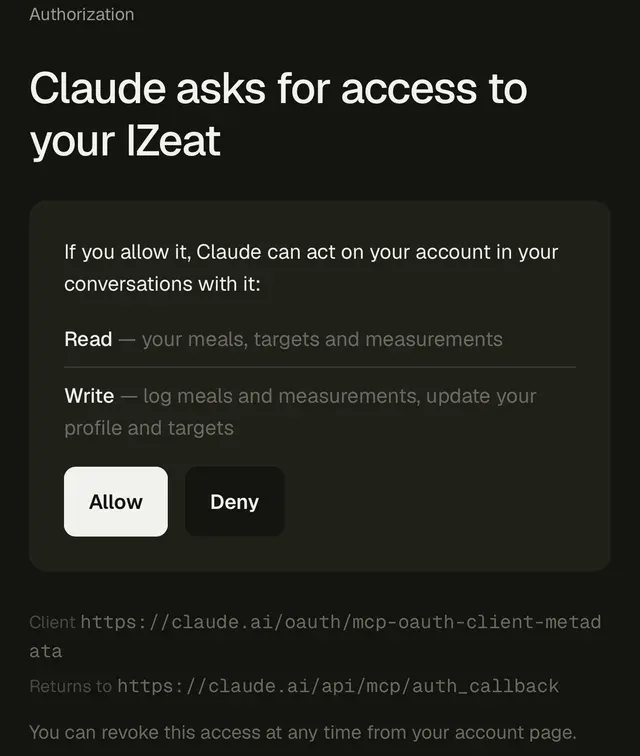
Claude brings you back here. Tap Allow.
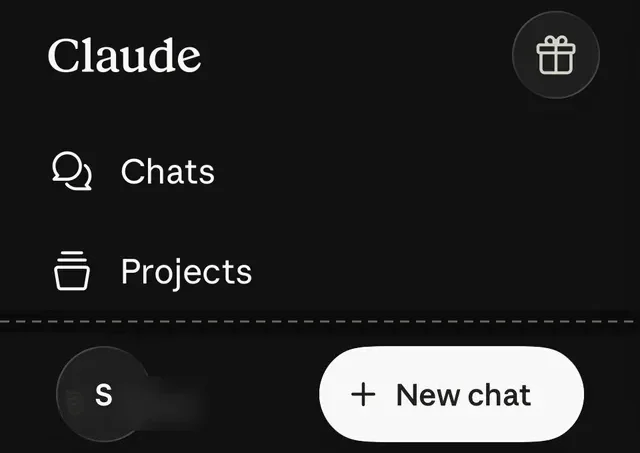
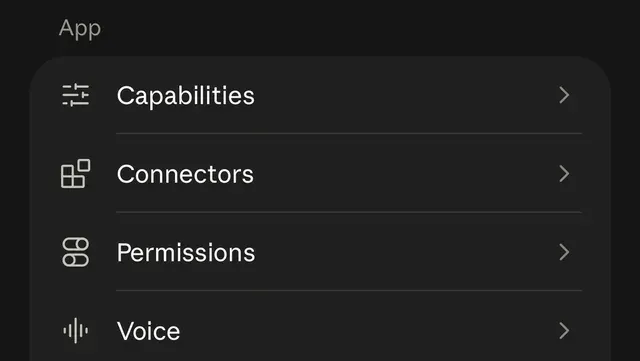
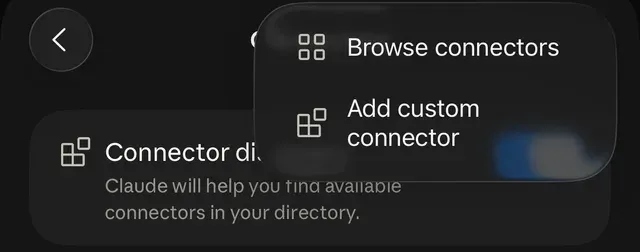
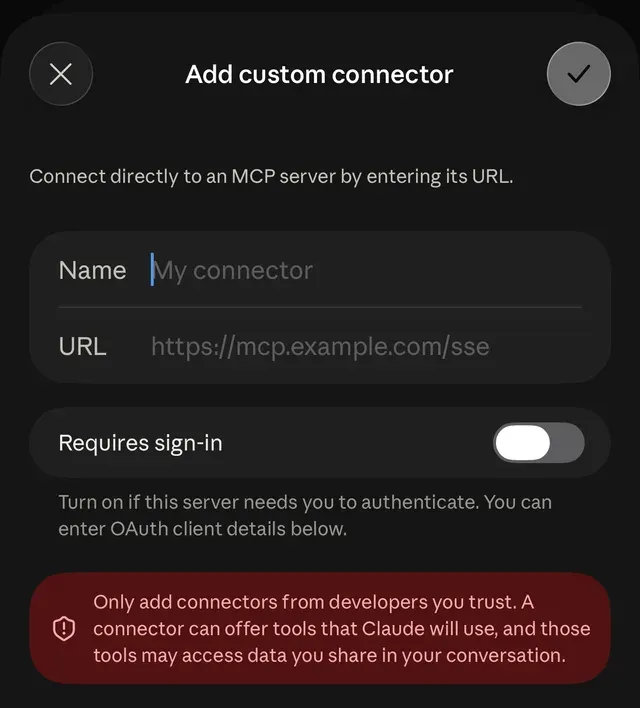
Name it IZeat. Paste your address as it is.
That is the whole form. Leave Requires sign-in off, then tap the check.
What next?
Once it is connected, say this.
First, check it is connected
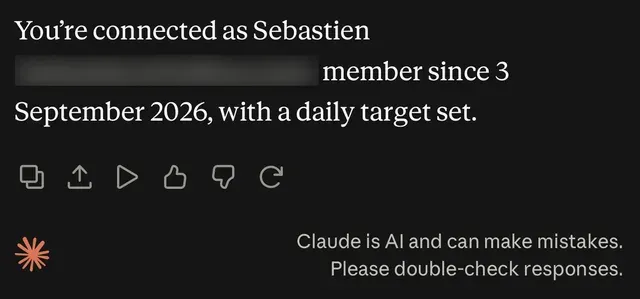
“Who am I in IZeat?”
It answers with your email. Nothing is recorded.
Then your first meal
“I had 180g of grilled chicken, 150g of rice and a plain yoghurt for lunch.”